
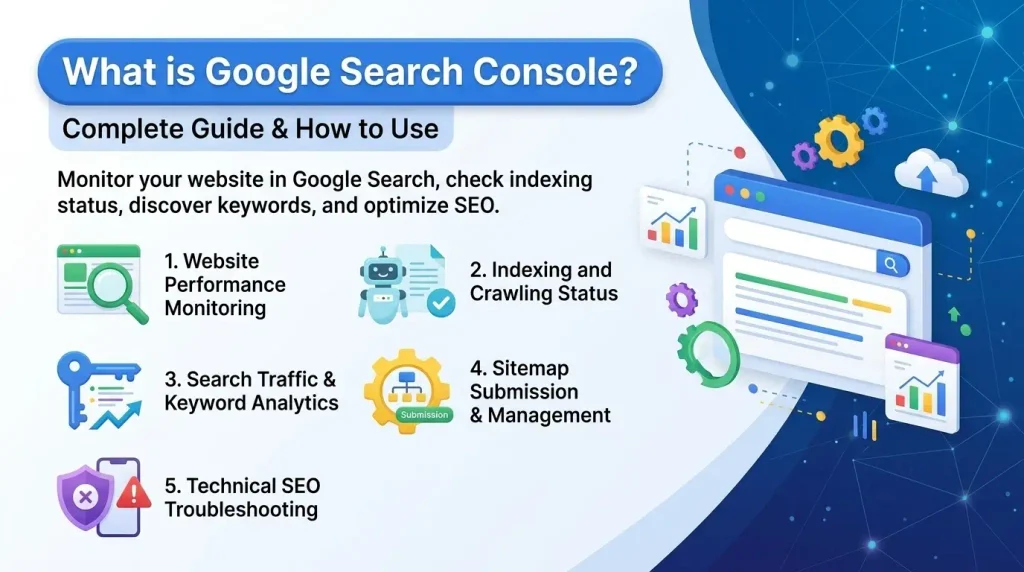
In today’s competitive digital environment, establishing a professional website is only half the battle. Ensuring that search engines can properly crawl, index, and rank your pages is essential for attracting high-intent organic traffic. Google Search Console (GSC) is a free, powerful web service provided by Google that allows website owners, SEO professionals, and digital marketers to monitor, maintain, and troubleshoot their site’s presence in Google Search results.
Whether you manage an e-commerce platform, a corporate service firm, or an informational blog on MadiGiServices, understanding how to leverage Google Search Console is vital for maximizing search visibility. In this complete guide, we will cover what Google Search Console is, why it is critical for SEO, how to set it up step-by-step, and how to utilize its core features to improve your site’s rankings.
What Is Google Search Console?
Google Search Console (formerly known as Google Webmaster Tools) is a free suite of diagnostic and reporting tools provided directly by Google. It acts as an official communication channel between your website and Google’s search algorithms.
While Google Analytics focuses on user behavior after visitors arrive on your website (such as page views, bounce rate, and conversion paths), Google Search Console focuses strictly on search engine interactions—how Google crawls your site, which search terms drive impressions, and whether any technical errors are suppressing your rankings.
Why Is Google Search Console Essential for SEO?
Using Google Search Console gives you direct access to first-party search performance data and technical health reports. Key benefits include:
- Confirm Indexation Status: Verify that Google can discover, crawl, and index every crucial page on your website.
- Analyze Search Traffic Performance: Track exact keywords (queries), search impressions, clicks, and average ranking positions on Google Search.
- Fix Technical Errors: Receive instant alerts regarding server response errors, broken links, coverage drops, or security issues.
- Submit XML Sitemaps: Guide Google’s spiders directly to new or updated content for faster crawling.
- Monitor Mobile Usability & Core Web Vitals: Ensure your site meets Google’s mobile-first user experience benchmarks.
- Audit Backlinks: Review external links pointing to your domain and identify potential spam backlinks.
Step-by-Step Guide: How to Set Up Google Search Console
Setting up Google Search Console is a straightforward process. Follow these steps to verify your domain and start gathering data:
Step 1: Sign In with a Google Account
Visit the official Google Search Console website and log in using the primary Google account associated with your business or website management team.
Step 2: Add a Property Type
Google provides two property options when adding your domain:
- Domain Property (Recommended): Covers all subdomains (
http://,https://,www,m.) across the entire domain. Requires DNS verification. - URL Prefix Property: Covers only the exact URL entered (e.g.,
https://madigiservices.com/). Allows simpler verification methods like HTML tag or Google Analytics integration.
Step 3: Verify Domain Ownership
To access private search data, you must prove ownership of the website. Recommended verification methods include:
- DNS TXT Record (Best): Add a provided TXT record to your domain registrar’s DNS management portal (e.g., Cloudflare, Namecheap, GoDaddy).
- HTML Tag: Insert a small meta tag snippet into your website’s
<head>section using an SEO plugin like Yoast SEO or Rank Math. - Google Tag Manager / Google Analytics: Link an existing container or GA4 tracking property for instant auto-verification.